Google Slides is a great cloud-based platform to create creative and professional presentations either from scratch or from pre-designed Google Slides templates. For supplementing your presentation with additional data and information, Google Slides offers you an option to insert a PDF.
In this tutorial, you will learn how you can incorporate a PDF in your Google Slides presentation effortlessly.
Inserting a PDF in Google Slides
You can’t directly insert a PDF in Google Slides; you need to follow two additional steps to get your work done –
1). Conversion of the PDF into a JPG, and
2). Insertion of the JPG into your presentation.
Convert the PDF into a JPG
1. Using an Online Conversion Tool
Step 1 – There are several free online conversion tools to convert PDFs to JPGs. Visit the free conversion tool of your choice. Eg. I use this tool to convert my PDFs to JPGs.
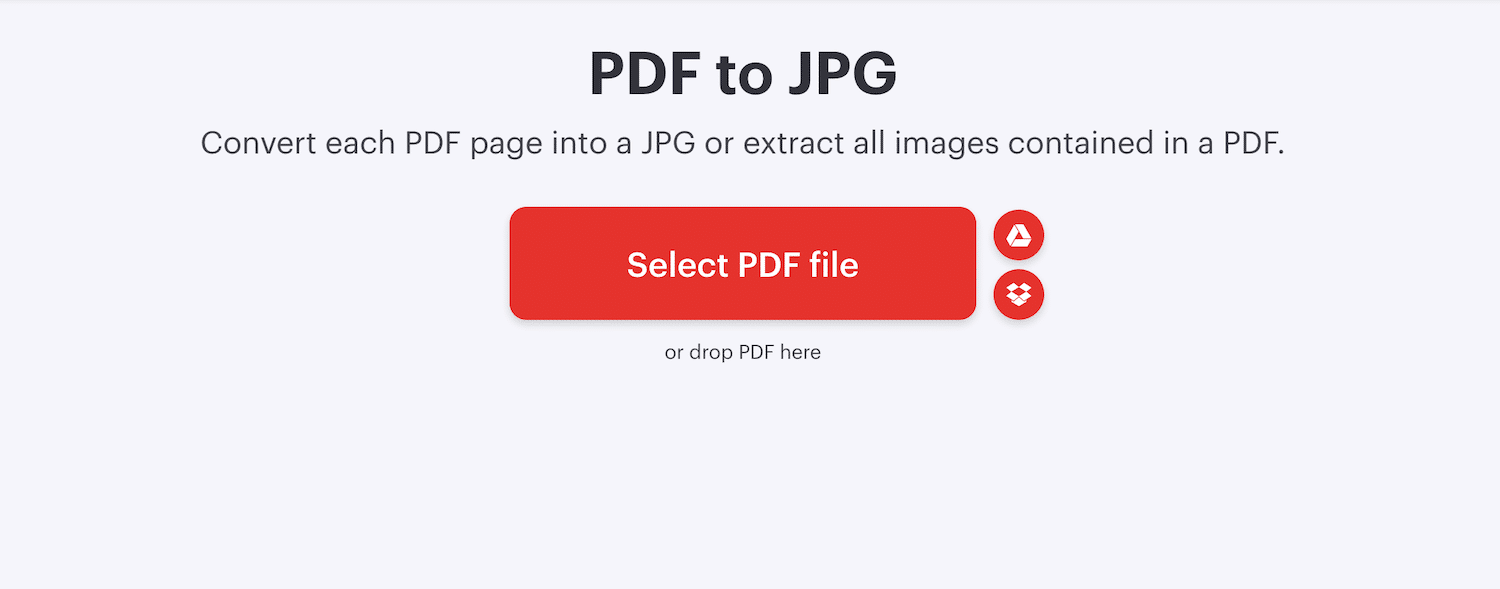
Step 2 – Drag the files or upload from the mobile or PC.

Step 3 – The converted file will be automatically saved in your local drive. If you are using some other tool to convert PDF to JPG, you may need to manually save the converted JPG file.
2. As Screenshots
Take a screenshot of each page in the PDF.
Step 1 – You can do this by pressing Windows + Shift + S (or Cmd + Shift + 4, if you use Mac).


Step 2 – Take screenshots of each page using the above method. Save them as JPG images.
Let’s learn how you can insert these JPG images into your presentation.
Inserting the JPG Images into Google Slides
You have converted the PDF file into JPG images. These images will get saved on your computer. Now, it’s time to upload the images in Google Slides. Follow these steps!
1. As Images
Step 1 – Open the slide in which you want to insert images. Then, go to the menu bar and click on ‘Insert.’ Next, click on ‘Image’ from the drop-down menu. Select ‘Upload from computer.’
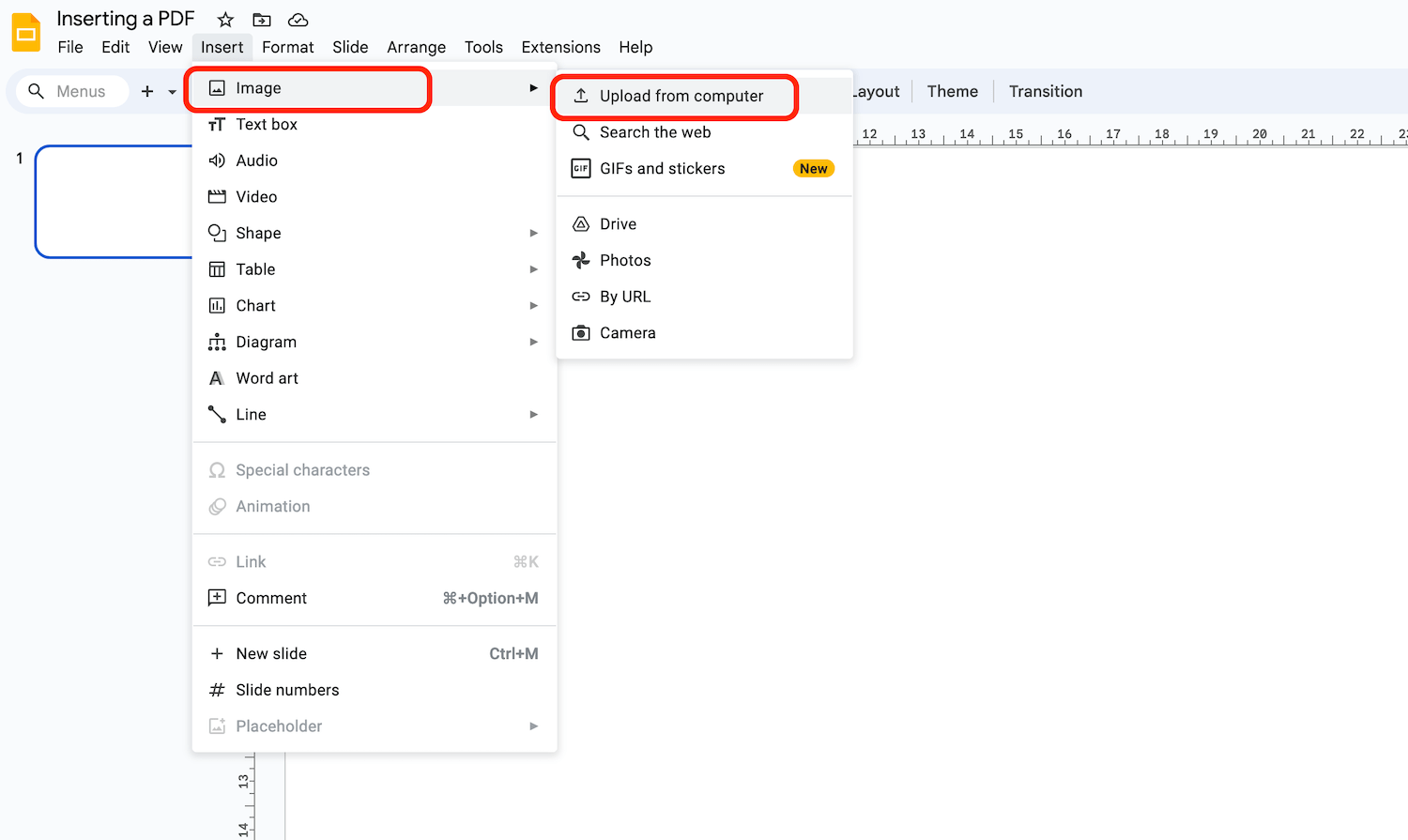
Repeat the procedure to upload every single image.
Or you can simply copy the image from your local drive and paste the image in your Google Slides presentation.
2. As One Image with a Link to Your PDF
Copy the most interesting picture from your local drive. Open your presentation in Google Slides and select the slide in which you want to add the PDF. Simply paste the picture or use the above method to insert the picture of your choice.
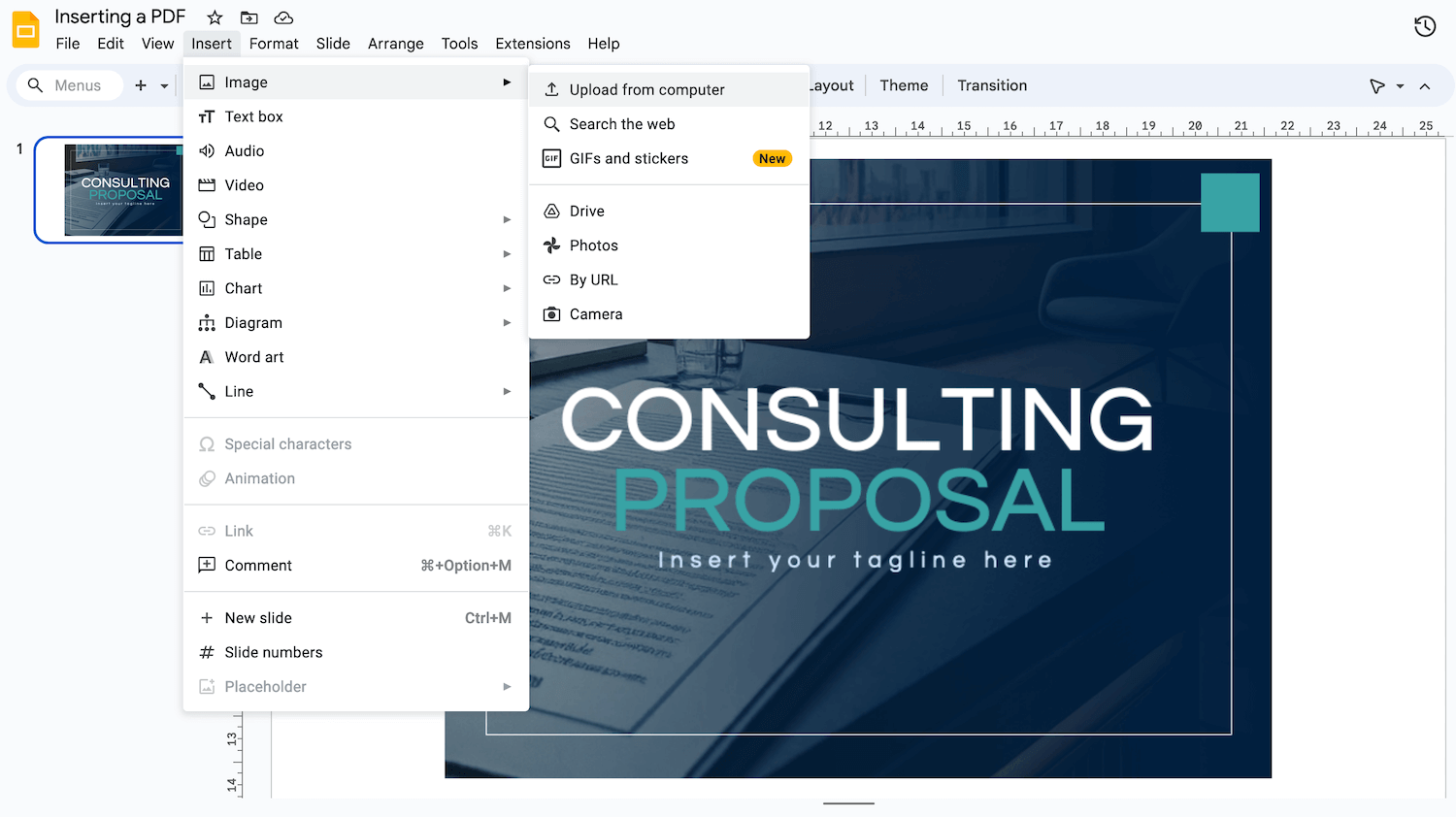
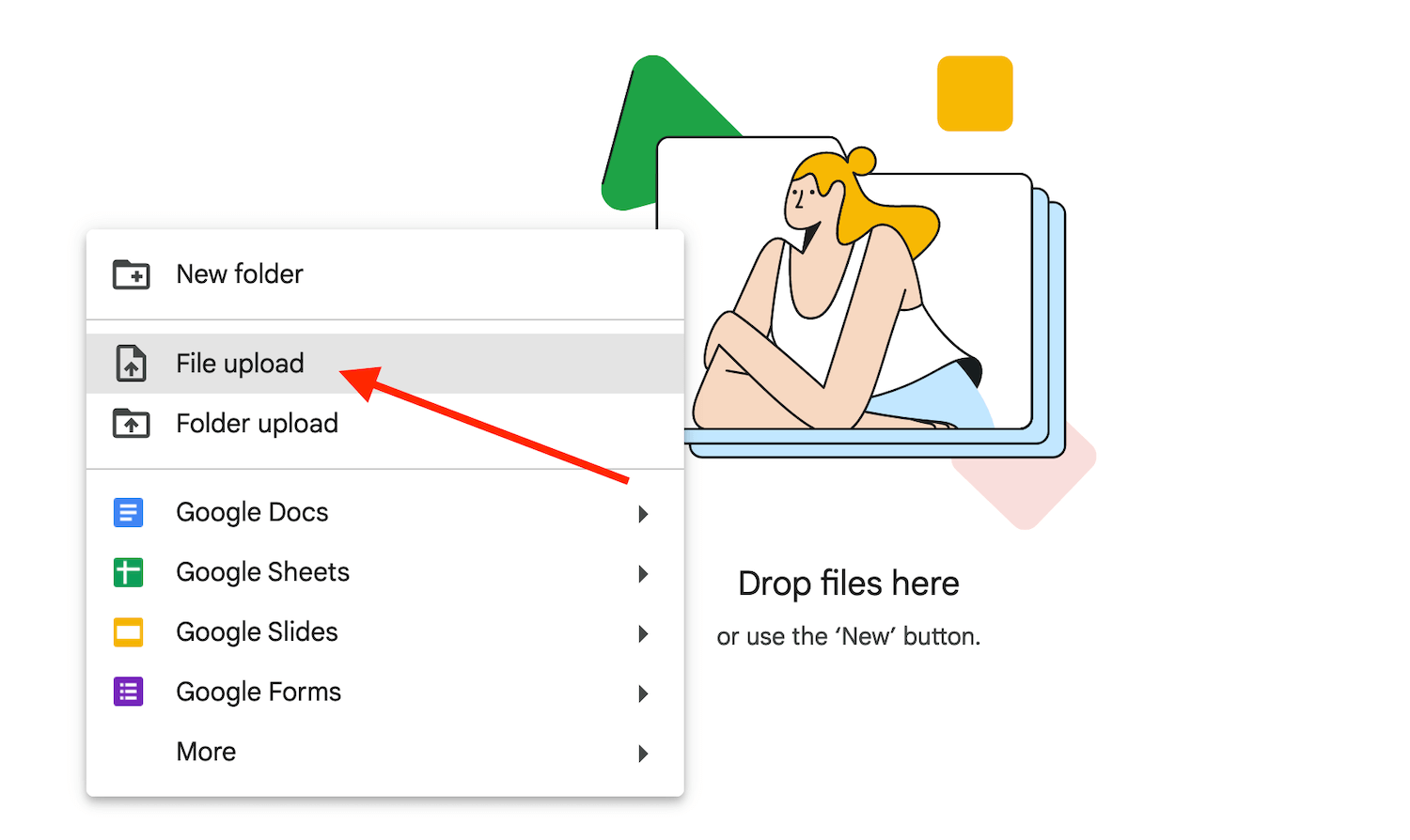
To link a PDF file to google drive, first you must upload the PDF file to Google drive. Follow these steps to upload a PDF file to google drive.
Step 1 – Open Google Drive. Now press right click and a context menu will appear. click on File Upload.
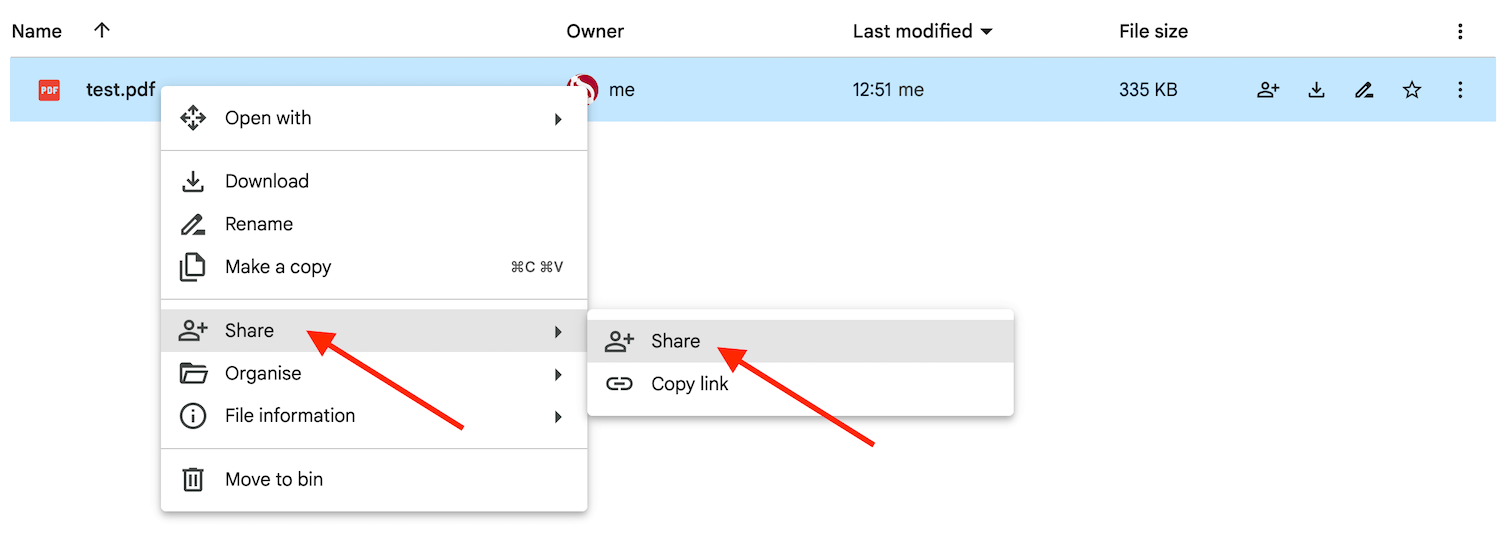
Step 2 – Right click on the file and select Share.
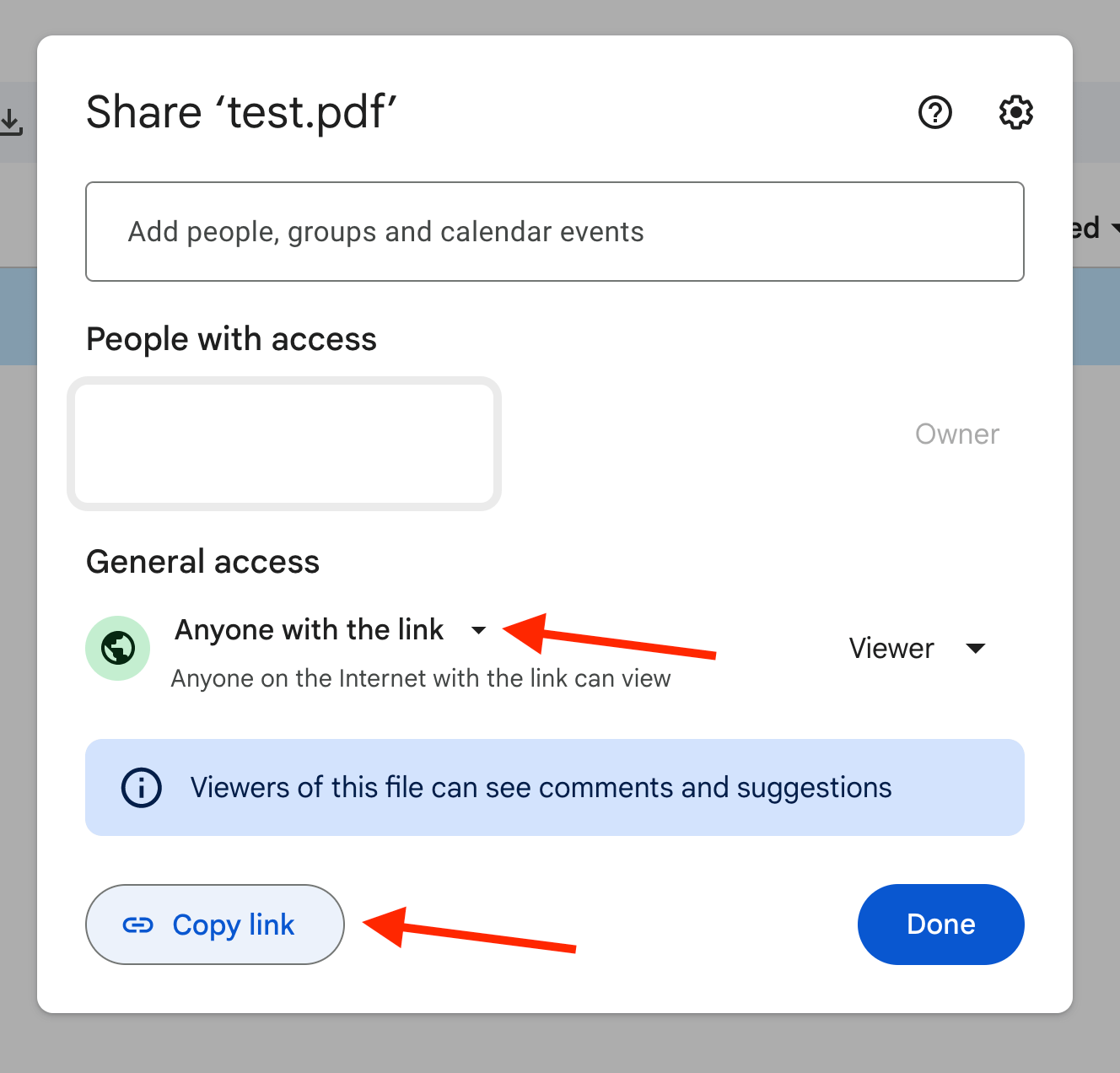
Step 3 – Choose who you want to see it, it can either be anyone who has the link or a list of people
Step 4 – Now click the Copy link and Done. The link is now copied in your clipboard
Final Step – Go back to the presentation, select the picture and, in the top menu, click Insert Link. Paste the link you just created and click apply.
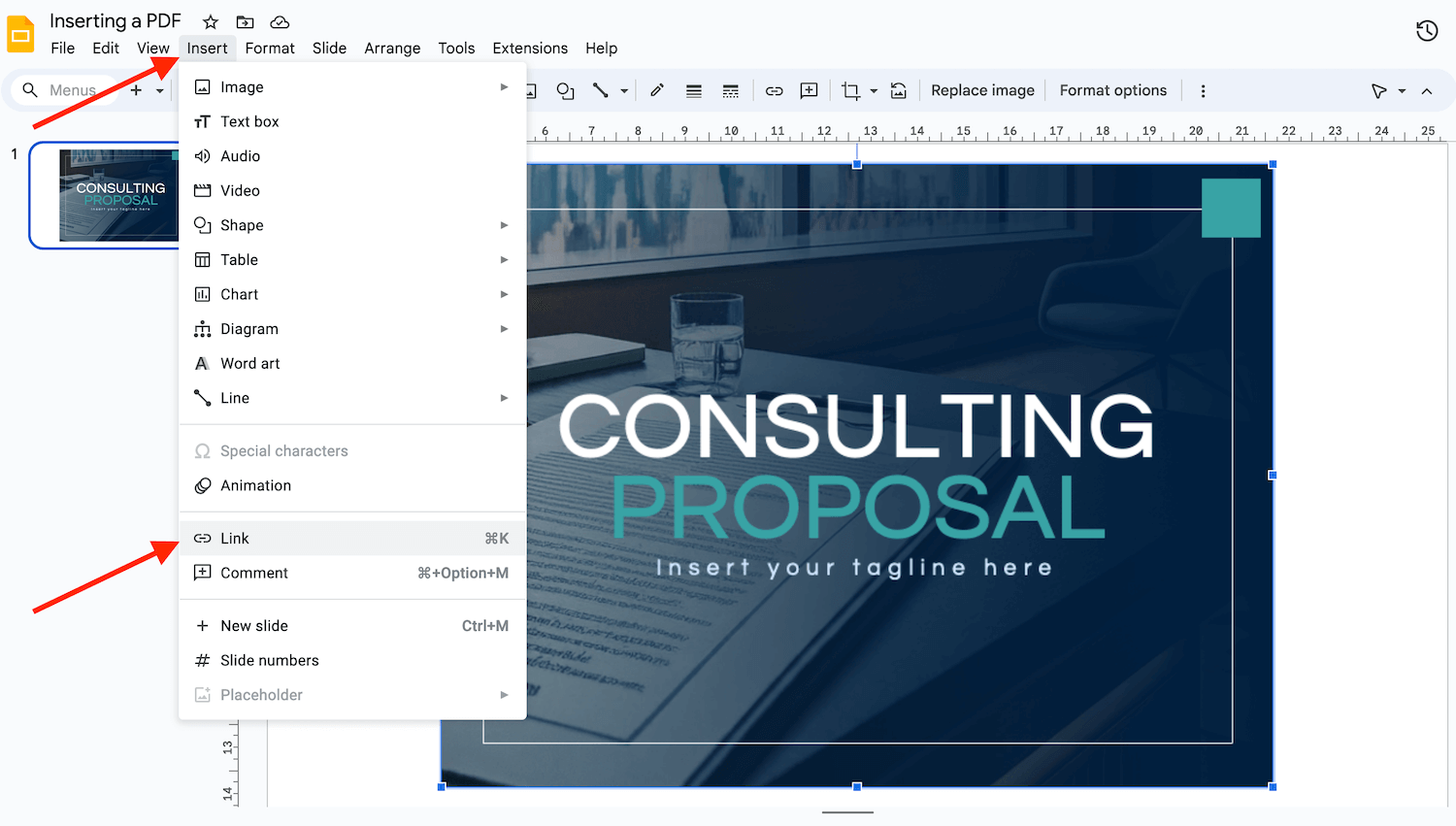
Now, anyone who views that picture will be able to access your document.